If you're brand new to AI agents, the OpenClaw desktop app is where I'd start in 2026. It's free, it's beginner-friendly, and it works on Mac, Windows, and Linux without any of the usual setup pain that puts new people off agent tooling. Most importantly, it removes 90 percent of the technical friction that has historically been the reason beginners bounce off OpenClaw before getting their first win.
This post walks you through what the desktop app actually is, why beginners genuinely love it, and how to get going without breaking anything along the way.
What Is The OpenClaw Desktop App?
The app is called ClawX, and it's a free, open-source desktop wrapper that gives you a clean interface for OpenClaw AI agents. Think of it as the spiritual cousin of ChatGPT or Claude Desktop, except instead of being locked to a single provider you can plug in any model and use OpenClaw's full agent powers underneath. That flexibility is the unlock most beginners didn't realise they wanted.
Why Beginners Love The OpenClaw Desktop App
I've talked to a lot of people trying to start with AI agents, and the same complaints come up repeatedly. They don't know how to use the terminal, they don't want to mess with config files, and the browser dashboard breaks too often to feel reliable. The OpenClaw desktop app fixes all three of those issues in one move.
Specifically, you don't need terminal commands because it installs like any normal app. You don't need to edit JSON because the configuration is done through toggles and forms. And you don't run into browser bugs because it runs as a real native app on your computer. If you're not technical, this is genuinely the difference between getting started and giving up.
What You Can Actually Do With The OpenClaw Desktop App
Once it's running, the app gives you a meaningful set of capabilities out of the box. You can chat with your OpenClaw agent the way you'd chat in ChatGPT, add multiple AI providers including cloud or local options, and schedule tasks that run automatically in the background. You can also connect to WhatsApp, Discord, and other channels, toggle skills on and off without breaking anything, and run multiple agents simultaneously while letting them talk to each other. That's a lot more capability than the browser gateway gives you out of the box.
Step-By-Step Install For Beginners
Don't overthink this — the install is genuinely straightforward.
1 — Get OpenClaw running
You need OpenClaw itself set up before you can use the desktop app. If you haven't done that yet, my Build Your Own OpenClaw walkthrough is the easiest starting point.
2 — Download ClawX
Head to the ClawX GitHub repo and click Releases. Download the file for your operating system — .dmg for Mac, .exe for Windows, or .AppImage for Linux.
3 — Install
On Mac you drag the app into Applications. On Windows you run the installer like any normal program. On Linux you make the AppImage executable and double-click it. Same difficulty as installing any other desktop app you've ever used.
4 — Open it up
The first launch will ask you to point at your existing OpenClaw setup or sign in if needed. The app picks up your existing agents automatically, which means you don't have to reconfigure anything you've already built.
5 — Add a model
Click Models, then Add provider, paste your API key, and save. Free options like Hermes Gemma 4 or DeepSeek are good starting points if you don't already have a paid provider.
6 — Start chatting
Open a new chat, type a message, and the agent responds. You're now running OpenClaw with a clean UI, no terminal in sight.
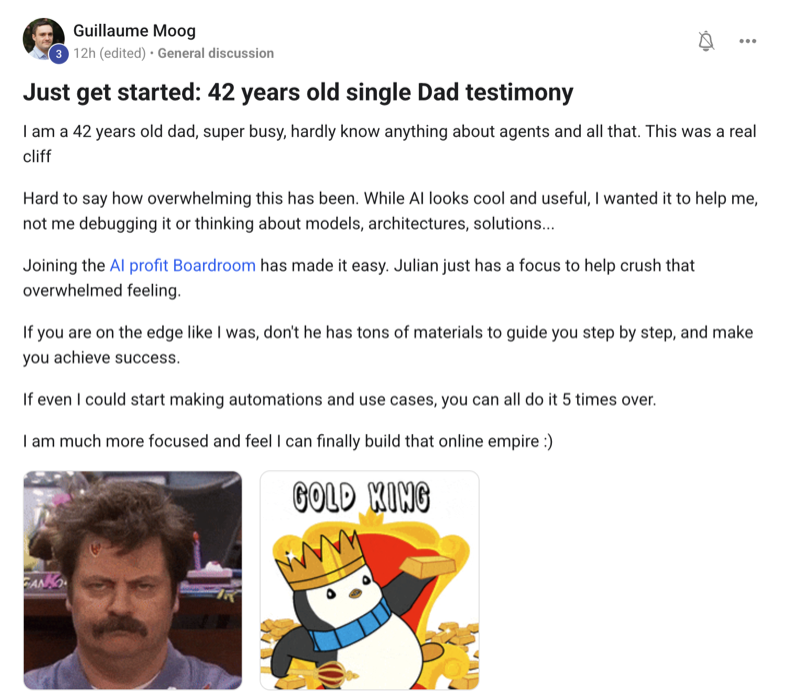
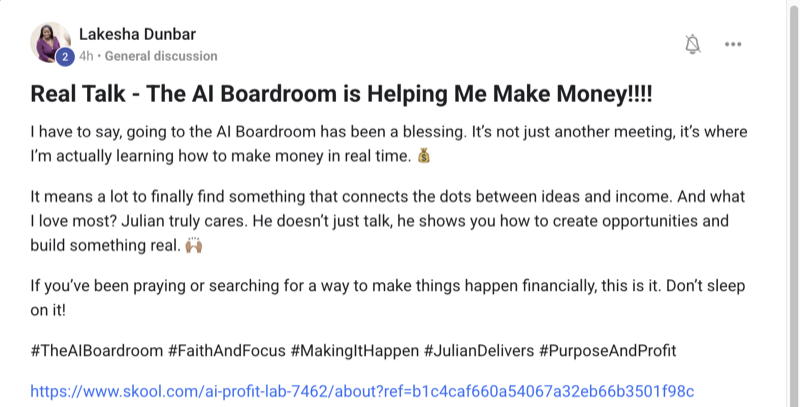
🔥 Brand new to AI agents? Inside the AI Profit Boardroom, I've got a full beginners' track for OpenClaw + ClawX — start-from-zero tutorials, weekly live coaching where you can share your screen and ask anything, and a 6-hour OpenClaw course covering every workflow. 3,000+ members and a friendly community for beginners. → Get started here
Free Models That Work Great For Beginners
You don't need to pay for AI to use the OpenClaw desktop app, which is good news if you're testing the waters. The DeepSeek free tier is fast and capable enough for everyday use. Local Ollama models run on your own computer with no API costs at all. OpenRouter free models let you switch between dozens of options as you find your favourites. Z AI is another solid free option I've tested. Add them all in the Models tab and switch between them per agent depending on the task.
Skills For Beginners
Skills are what give your agent abilities, and ClawX comes with a solid set out of the box. You get web search, browser automation, terminal CLI access, text-to-speech, and file operations — and each one can be toggled with a single switch. If you want more, the marketplace has plenty of community-built skills to choose from.
For your first agent, I'd switch on web search so it can research, browser so it can interact with sites, and memory so it remembers context across sessions. That combination is enough to do real work, and adding more skills before you've mastered those three usually causes more confusion than it solves.
Scheduled Tasks Made Simple
Scheduled tasks are one of the most underrated features in the desktop app. You can tell your OpenClaw agent to do something on a recurring schedule — for example, summarising the latest AI news every morning at 8am, posting a content brief to your Notion every Monday, or checking your inbox every hour and tagging urgent emails.
The OpenClaw desktop app makes setting these up genuinely easy compared to the browser equivalent. I cover the same kind of automations in OpenClaw Byterover if you want a deeper dive into what's possible.
Connecting To WhatsApp And Discord
If you want your agent answering messages from your phone, ClawX lets you connect channels in two clicks. The beginner-friendly setup is: click Channels, pick the channel you want, follow the prompt, and you're done. Once it's connected, you can text your OpenClaw agent from your phone like any other contact in your address book — which is a wild upgrade from the browser gateway where this used to be painful.
Mistakes Beginners Make
Three common mistakes I see beginners make repeatedly with the desktop app.
The first is skipping the OpenClaw install. ClawX is a UI on top of OpenClaw, which means you need OpenClaw itself set up before the app does anything useful. The second is adding too many skills at once — start with three or four and add more as you need them, because too many skills causes more confusion than capability early on. The third is trying to write your own system prompt from scratch on day one. Use the default OpenClaw system prompt and tweak from there once you understand how the agent behaves.
What To Build First
Don't try to build a ten-agent empire in week one. Start with one agent, three skills, one scheduled task, and one connected channel. Get that running cleanly for a week, see how the moving parts behave together, and only then expand to a second agent or more skills. I have a full beginner roadmap inside the AI Profit Boardroom that walks you through this exact sequence week by week.
🚀 Want a guided OpenClaw beginner roadmap? The AI Profit Boardroom has a step-by-step OpenClaw beginner track. Daily training drops, the exact same setup I use, and weekly screen-share calls where you can ask anything live. 3,000+ members ready to help. → Join here
FAQ — OpenClaw Desktop App For Beginners
Is the OpenClaw desktop app actually free?
Yes — fully free, open source, with no paid tier. There's no upsell trick or trial expiry to worry about.
Do I need coding experience?
No, you don't. The whole point of the OpenClaw desktop app is to remove the technical barrier that previously kept non-developers out.
Will it run on my old laptop?
If your laptop runs ChatGPT or Claude Desktop, it'll run ClawX. The hardware requirements are modest.
What's the minimum I need to know?
You need OpenClaw itself set up and an API key from at least one model provider. That's the entire prerequisite list.
Can I use ClawX without an internet connection?
Only if you're using a local Ollama model — cloud providers obviously need internet to talk to their APIs.
Will my agents stop working if I close the app?
Cloud agents pause when you close the app. Scheduled tasks still run if OpenClaw itself is running in the background, so leaving the OpenClaw daemon active is the way to keep automations alive.
What's the easiest first task to try?
Ask your agent to write a tweet about something you did today. It's a boring task, but it shows you the agent works end-to-end and it's the right level of difficulty for a first interaction.
Related Reading
- What Are AI Agents — the basics, if you're brand new.
- Free Claude Code — another beginner-friendly free agent tool.
- Best AI Agent Community — where to get help when stuck.
📺 Video notes + links to the tools 👉
🎥 Learn how I make these videos 👉
🆓 Get a FREE AI Course + Community + 1,000 AI Agents 👉
If you've been waiting for a beginner-friendly way in, the OpenClaw desktop app is the easiest free entry point I've found in 2026.